
Set up
Getting Started
Fill in your card in three steps, then check it the way you, a responder or anyone else with your watch will see it. EmergencyAid is there for you to use as well as for the people who help you.
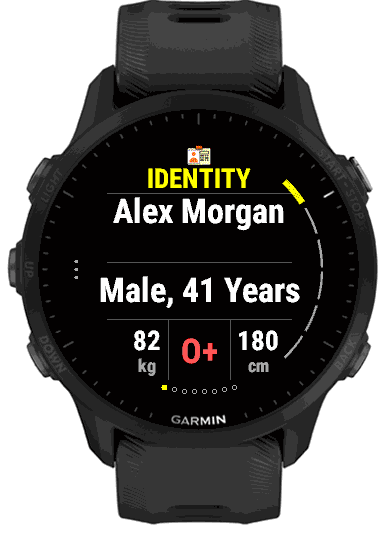
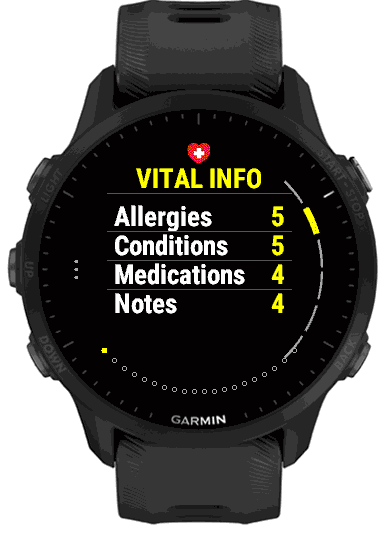
Fill in your details
Type them in the Garmin Connect IQ app on your phone, or directly on the watch. Both edit the same information.
Choose what shows
Every section has a Show switch. Sections you turn off, or leave empty, are left out of the card.
Check your card
Open EmergencyAid and step through it. The first page is what a stranger sees first.
Fill in your details on your phone
Open the Garmin Connect IQ app on your phone, then go to My Device > My Apps > EmergencyAid > Settings. Exact wording can vary by Garmin app version and platform. A full keyboard makes this the easiest way to enter names, numbers and medications. Changes reach the watch the next time it syncs with your phone.
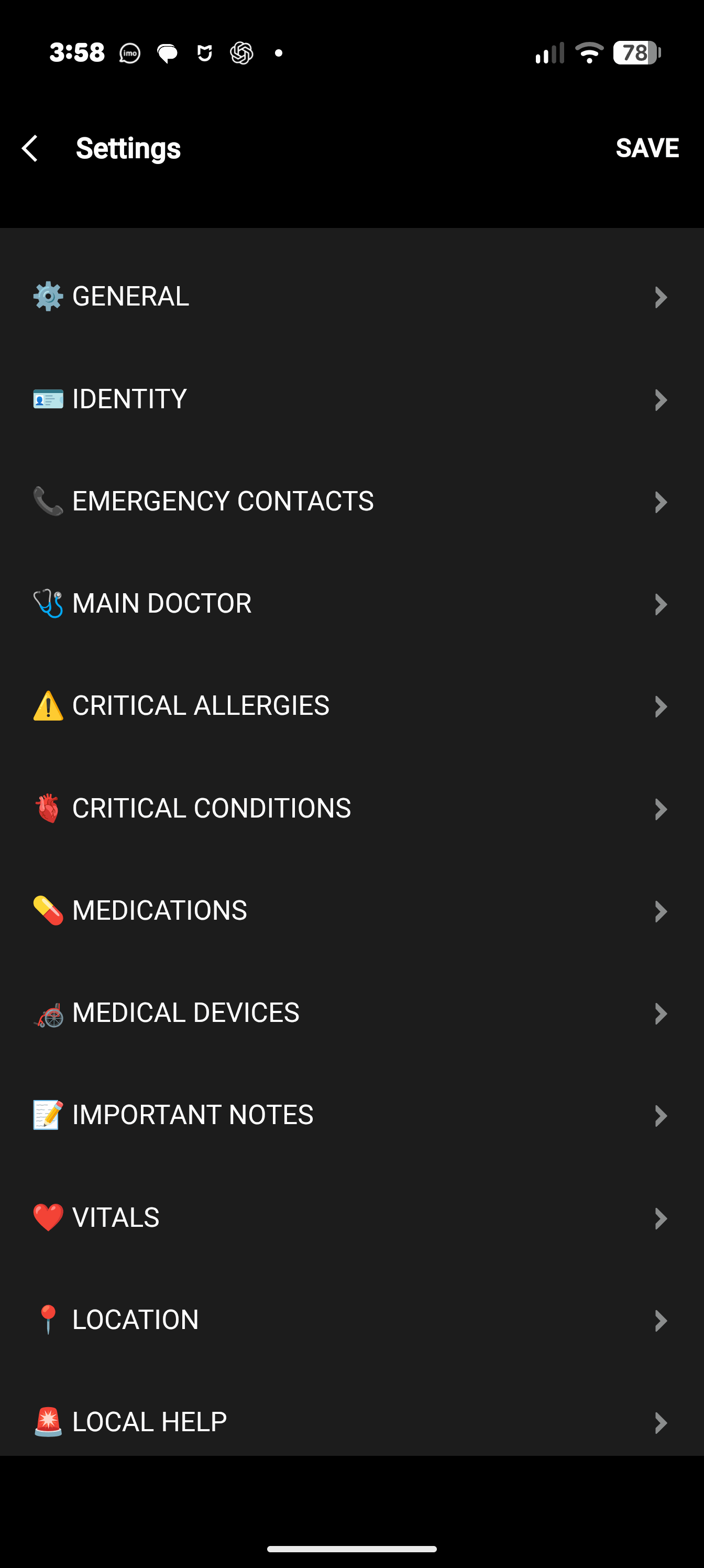
The settings page is split into groups, in this order:
- General
- Boost backlight, and Auto-cycle (what they do).
- Identity
- Show identity, Use Garmin Profile (on by default: your birth year, gender, weight and height come from your Garmin profile; switch it off to type your own, see Use Garmin Profile), name, address, country, contact number, blood type, birth year, gender, weight, height, and up to four “Other detail” name and value pairs such as a passport or insurance number. See Identity.
- Emergency Contacts
- Two contacts, each with a Show switch, name, relationship and up to two phone numbers. See Emergency Contacts & Doctor.
- Main Doctor
- A Show switch, name and up to two phone numbers. See Emergency Contacts & Doctor.
- Critical Allergies
- A Show switch, a switch for every allergy in the list, and an “Other” text box for anything that is not listed. See Critical Allergies.
- Critical Conditions
- A Show switch, a switch for every condition in the list, and an “Other” text box for anything that is not listed. See Critical Conditions.
- Medications
- A Show switch and four text boxes, one medication each, for the name, dose and how often. See Medications.
- Medical Devices
- A Show switch, a switch for every device in the list, and an “Other” text box for anything that is not listed. See Medical Devices.
- Important Notes
- A Show switch and four free-text notes. See Important Notes.
- Vitals
- A switch for each vital. See Live Vitals.
- Location
- A Show switch for the Location page. See Location.
- Local Help
- A Show switch for Local Help. See Local Help.
Fill in your details on the watch
Every section of the card can also be edited on the watch, using the same watch text entry as other Garmin apps. EmergencyAid keeps its menus behind a hold, so a short press never opens them by accident.
- Watches with UP and DOWN buttons (for example Forerunner and fēnix)
- Hold UP for about half a second. Three dots on the left edge of the screen, beside the button, show where.
- Watches with all their buttons on the right (for example Venu, vívoactive and Approach S)
- Hold the bottom button, the one beside the three dots, for about half a second. On a touch screen you can instead touch the three dots.
- From a page of the card
- The same hold opens the Settings list with the cursor on that page’s own setting: hold on the Identity page and the cursor is on Identity, on an allergy page and it is on Critical Allergies. Press START to open it, or scroll to another setting. Press BACK to return to the card.
See Watch Controls for every button and gesture, and Settings & Privacy for what each Settings row does.
Garmin Connect Instant Keyboard
On a compatible watch, selecting a text field can open Instant Keyboard in the Garmin Connect app so you can type with your phone. Keep the watch paired, leave Garmin Connect open on the phone and make sure Instant Keyboard is enabled in Garmin Connect. The finished text is sent back to the field on your watch.
What to enter
- Country (in Identity)
- Set it first. Phone numbers you type the way you would dial them at home, such as
0400 111 222, are shown with your country’s calling code (+61 400111222), so they can be dialled from anywhere, including the QR codes. Numbers that already start with+are left alone. - Blood type, allergies, conditions, devices
- Pick from the lists, and type anything missing in the “Other” box. Blood type is a single choice.
- Medications
- Name, dose and how often, for example
Metformin 500 mg twice daily. Each box holds up to 60 characters. - Important notes
- Anything else a responder should know, such as
Carries glucose gel in the front pocket. Each note holds up to 120 characters. - Emergency contacts and doctor
- A name and at least one phone number. A relationship such as Partner or Son is shown on the card with the name.
Check your card
Open EmergencyAid from the apps list, or from its glance, and press DOWN to move through the pages. Look at the card the way a stranger would: is the first page the one you want them to see first, can they read the blood type and the allergies, and do the phone numbers look right?
Scan a contact’s QR code with your own phone to see that it offers to call the right number. Go outside once and open the Location page so you know the GPS finds you.