Buttons and touch
Watch Controls
Every supported watch can be used with its buttons. Touch watches also accept swipes and taps. Nothing essential depends on a gesture, and a stranger needs only DOWN.
Every page of the card is laid out the same way. This is the Local Help page on a Forerunner 955, with each part named. The same names are used in the rest of this guide.
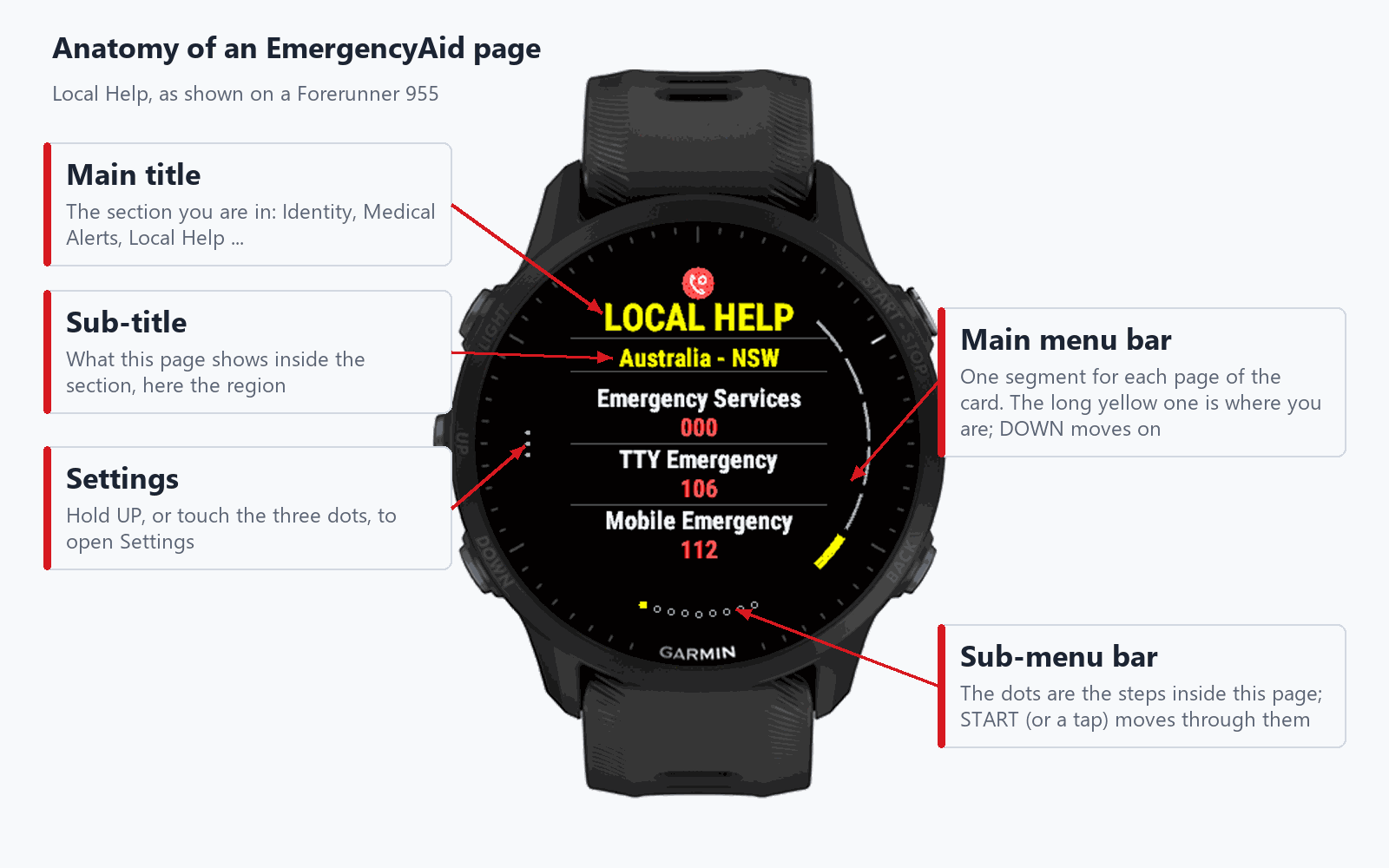
- Main title
- The section you are in, such as Identity, Medical Alerts or Local Help.
- Sub-title
- What the page shows inside that section. On Medical Alerts it names the list (Critical Allergies, Medications); on Local Help it names the region.
- Main menu bar
- The arc on the edge. It has one segment for each page of the card, and the long yellow one is the page you are on. DOWN moves to the next page.
- Sub-menu bar
- The dots along the bottom, shown when a page has more to open. They are the steps inside the page, and the yellow one is where you are. START or a tap moves through them.
- Settings
- The three small dots beside the button that opens Settings. See Opening Settings.
On a watch with all its buttons on the right, the main menu bar moves to the left edge and the Settings dots sit beside the button on the right.
Moving through the card
DOWN
Next page. Inside a section it steps through that section’s pages first, then moves on. After the last page it comes round to the first.
UP
Previous page, or the previous step inside a section.
START / SELECT
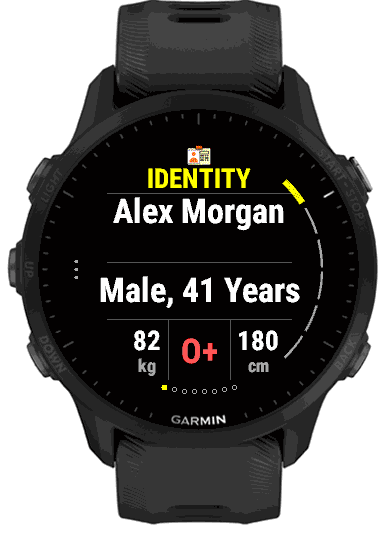
Open the page’s details: Identity’s extra pages, Vital Info’s Medical Alerts, the contacts, a vital’s graph, the Location QR, or the Local Help numbers. Inside a section, the same as DOWN.
BACK
Come out of a section, a QR code or a list of numbers. From any other page it returns to the first page. Pressed on the first page, it leaves EmergencyAid.
↑ / ↓ swipe
Touch watches: swipe up for the next page and down for the previous one, the same as DOWN and UP.
← / → swipe
Touch watches: swipe left to open a page’s details or step forward through them, and right to step back. A swipe left or right also closes a QR code.
TAP
Touch watches: the same as START. On a page with nothing to open, it goes to the next page.
Opening Settings
Settings is behind a hold, so a short press never opens it by accident. Three dots on the screen edge, beside the button, show where.
Hold UP
Watches with UP and DOWN buttons, such as Forerunner and fēnix. Hold for about half a second. The dots are on the left edge.
Hold the bottom button
Watches with all their buttons on the right, such as Venu, vívoactive and Approach S. Hold the bottom one, the one beside the dots, for about half a second. A short press does nothing. If the hold does not open Settings, touch the three dots instead.
Touch the ⋮ dots
Touch watches: touching the three dots opens Settings, like the hold.
Hold on a page
On a page with its own setting, the hold opens the Settings list with the cursor already on that setting. It does not open it: press START to go in, or scroll to another setting. BACK returns to the card, starting at the first page.
Inside Settings, UP / DOWN (or a swipe) move between rows, START (or a tap) selects, and BACK goes back one level. See Settings & Privacy for what each row does.
QR code pages
A QR code fills the screen on a white background so a phone can read it. BACK closes it, and so does a swipe left or right on a touch watch. Hold a phone’s camera square to the screen; with Boost backlight on, the watch asks for full brightness each time you touch it.
Backlight and auto-cycle
Pressing a button or touching the screen asks the watch for its brightest backlight, when Boost backlight is on. Auto-cycle can move through the pages by itself every 1 to 10 seconds; it pauses while you are inside a QR code or Settings. Both are set under Settings.
Watches without a touch screen
Use DOWN and UP to move, START to open, BACK to return, and hold UP for Settings.