
Configuration
Settings & Privacy
Hold UP on the watch (or the bottom button on a watch with all its buttons on the right) to open Settings. Every section of the card is edited there, and the same fields are on your phone in the Garmin Connect IQ app.
On-watch settings
Settings is one list. The first two rows are display options, then comes a row for each section of the card, then About.
- Boost backlight and Auto-cycle
- Boost backlight is a tick row, on by default. When it is on, EmergencyAid asks the watch for its brightest backlight whenever a page is shown or you press or touch the watch, so the card is readable in a hurry. The watch still decides how long the light stays on, and may refuse the request to protect the display.
Auto-cycle moves through the pages of the card by itself. Choose Off (the default) or any time from 1 to 10 seconds per page. It pauses while a QR code or Settings is open.  Identity
- Show, Use Garmin Profile, Name, Address, Country, Contact Number, Blood Type, Birth Year, Gender, Weight, Height and four Other details. Use Garmin Profile is on by default: your birth year, gender, weight and height are then read from your Garmin profile, and those rows are for information only. Switch it off to type your own. See Use Garmin Profile and Identity.
 Emergency Contact 1, Emergency Contact 2
- Show, Name, Relationship, Phone and Second Phone. See Emergency Contacts & Doctor.
 Main Doctor
- Show, Name, Phone and Second Phone.
 Critical Allergies
- Show, a tick row for each of the 29 allergies (ticked ones first) and Other allergies. See Critical Allergies.
 Critical Conditions
- The same, for 19 conditions. See Critical Conditions.
 Important Notes
- Show and four notes. See Important Notes.
 Medications
- Show and four medication boxes. See Medications.
 Medical Devices
- Show, a tick row for each of the 15 devices and Other devices. See Medical Devices.
 Location
- Show. The page itself is live GPS, so there is nothing else to set. See Location.
 Local Help
- Show, and Country / region. See Local Help.
 Vitals
- A tick row for each of Heart Rate, Temperature Sensor and Blood Oxygen (SpO2). All are on by default, but a vital your watch does not record is never shown. See Live Vitals.
 About
- Opens on a QR code labelled User Guide that opens this guide when scanned with a phone, so you do not have to type an address. Press START, UP, DOWN or tap to switch to the page with the app version and creation date, and again to come back. BACK leaves About.
Phone settings
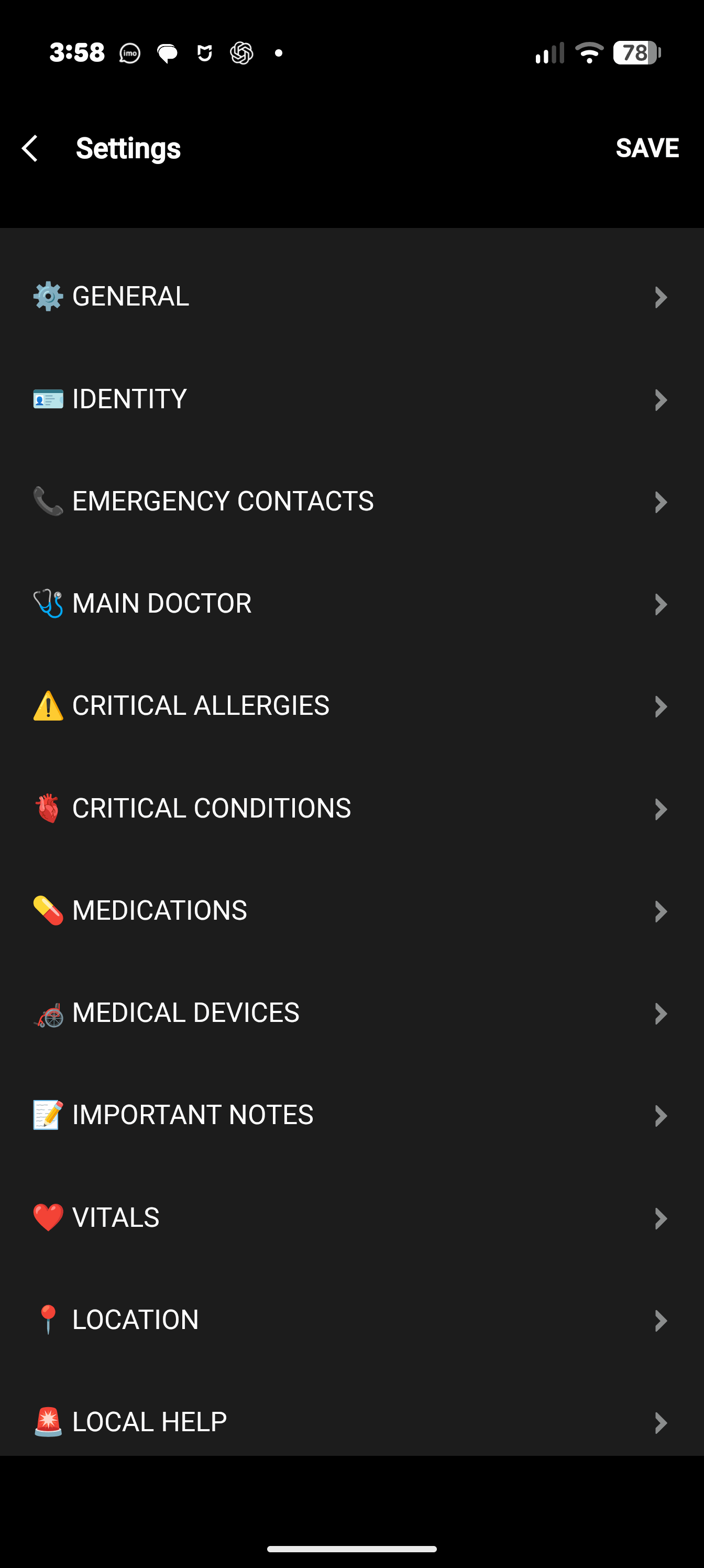
Open the Garmin Connect IQ app on your phone and choose My Device > My Apps > EmergencyAid > Settings. Exact wording can vary by Garmin app version and platform. The page has one group for each part of the card, led by a symbol: General, Identity, Emergency Contacts, Main Doctor, Critical Allergies, Critical Conditions, Medications, Medical Devices, Important Notes, Vitals, Location and Local Help. Changes reach the watch when it next syncs.
What you type on the phone and what you type on the watch are the same fields: edit in either place and the other shows it. See Getting Started for the groups in order.
Field limits
- Name, contact and doctor names
- 40 characters.
- Address
- 120 characters.
- Phone numbers and Identity contact number
- 24 characters each.
- Relationship
- 30 characters.
- Other detail name and value
- 24 characters for the name, 60 for the value. Up to four details.
- Other allergies, Other conditions, Other devices
- 200 characters each, shared between everything you type in that box.
- Medication boxes
- 60 characters each, four boxes.
- Important notes
- 120 characters each, four notes.
The watch cuts typed text to the same length the phone page allows.
Privacy
EmergencyAid keeps your information on your Garmin watch and shows it there. It does not ask for a network permission, so the watch app cannot send anything to the developer or to any service. There is no account, no companion app and no developer-run server for the watch app to talk to.
What the app uses, and for what:
- Your typed details
- Stored in the app’s own settings on the watch, and shown only on the watch. If you edit them through the Garmin Connect IQ app, Garmin handles delivery of those settings under Garmin’s own privacy practices.
- Location (GPS)
- To show where you are, and to pick the country and state for Local Help. See GPS and battery. Not recorded.
- Heart rate, temperature and blood oxygen
- Read from the history your watch already keeps, to show on Live Vitals. EmergencyAid does not store them.
- Birth year
- Read from your Garmin user profile to work out your age.
If you use this website’s Feedback & Support form, the message, the type of feedback, an optional rating, an optional watch model, an optional app version, an optional email address and the time are stored so the developer can read and answer it. It is processed with Cloudflare and may be emailed to the developer using Resend. It is not sold or used for advertising.
Removing your information
Clear the fields, on the watch or on your phone, to remove what you typed. To remove everything at once, uninstall EmergencyAid from the watch in the Garmin Connect IQ app; the information stored on the watch goes with it.